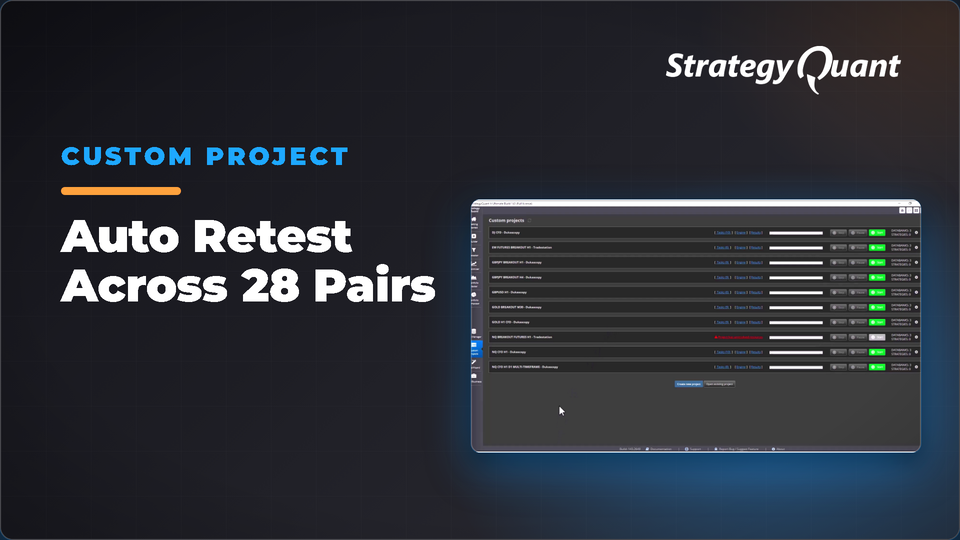
Automated workflow for backtesting strategies across 28 Dukascopy forex pairs at M1 timeframe in New York trading hours. Useful for evaluating which strategies perform robustly across different currency pairs. The included build config / custom project keeps the author's broker settings (symbol, engine, timeframe). After installing, set your own data in every task.
Workflow dependencies
• 28 Dukascopy Forex Pairs as outlined under Workflow Tasks
– Timezone set to (EST+07) New York Trading hours, US DST, DST: Yes
• Candidates – where strategies to be tested are loaded.
• Results – Output of test results
Test strategies used
• We used 24 publicly available strategies from SQX shared archive, untouched and loaded direct into the Candidates databank.
• links are provided below if you want to replicate the test.
• Sort Results by Strategy Name to keep respective strategy results grouped together.
• Our test was 24 strategies by 28 Forex pairs producing 672 unfiltered results.
• For newer users, if you set Ranking custom filters, a couple thing to keep in mind
– Setup in 1st task, AR_01 – AUDCAD
– ENABLE Delete FAILED strategies in databank (user decision to see raw output keep disabled)
– Remember Automatic filters (they are easy to forget).
– Use Mass apply config of this task available when clicking the gear icon in the upper right-hand corner of the task box.
– In Source config, ENABLE ONLY Ranking
– In Target tasks, ENABLE ALL tasks BUT AR_01 – AUDCAD
– Click Apply Mass Config
– Oh, one last thing, you will have to manually clear the results databank or add your own Clear databank task.
Data and broker settings
The custom project was set up on the author's broker data:
These settings are not converted to your data automatically. If a symbol is not in your Data Manager, StrategyQuant X may use a different symbol and a shorter date range. Before you run it:
1. Open every task (Build, Retest, Monte Carlo…) and choose your own symbol, timeframe and engine on the Data tab.
2. Set the in-sample and out-of-sample dates to match your data.
3. Check spread, commission and slippage for your broker.
4. Save the project or config under your own name.